
Screenshot to Tasks
Turn screenshots into organized tasks
Upload or paste a supported screenshot of a client request. Text2Task organizes the visible details into a task draft you can review, edit, and approve before saving.
You choose what to upload. Text2Task does not connect to your messaging or email accounts.
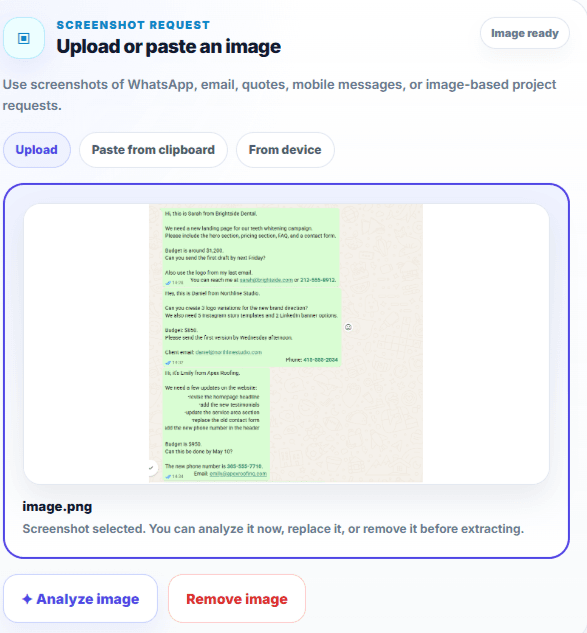
Upload or paste the screenshot yourself. Text2Task does not read directly from WhatsApp, Gmail, Outlook, or another inbox.
Why screenshots become messy work
One screenshot can contain several different tasks
Client screenshots often mix requests, corrections, deadlines, amounts, contact details, and extra notes in one image. Rebuilding every detail manually takes time and makes it easier to miss something important.
Several instructions can appear in the same conversation.
Important dates and amounts can be buried inside the message.
The original context still matters when the task list is reviewed.
How it works
From a screenshot to a reviewable task draft
Upload or paste one screenshot
Choose a supported screenshot containing the client request you want to organize.
Review the proposed tasks
Text2Task organizes visible instructions and supporting details into a draft.
Edit, remove, and save
Correct supported fields, remove tasks that do not belong, and save only after you approve the result.
What may be organized
Keep the useful details together
When the information is present and readable, the draft may include:
- Task instructions
- Client or contact details
- Deadlines
- Priority
- Budget or amount
- Notes and original context
Review every result before saving. Details that are missing, unclear, or not written in the screenshot may remain unspecified.
You stay in control
Nothing is saved automatically
Text2Task creates a draft for review. You can edit supported information, remove tasks that do not belong, and save the result only after you approve it.
A screenshot may contain one task or several related tasks
A short screenshot may contain one clear request. A longer conversation may contain several related tasks, deadlines, and supporting details. Text2Task helps separate that work so you can review it clearly.
Common screenshot workflows
Useful when client requests arrive as screenshots
Turn screenshots of site-edit requests into a reviewable task draft.
Organize screenshots of design feedback and revision requests.
Turn screenshots of content approvals into clear tasks.
Keep bug reports, UI screenshots, and supplied device details with the right development task.
Organize storefront screenshots, product changes, and promotion notes before launch work begins.
Turn captured revision notes, export requirements, and timecoded feedback into reviewable editing tasks.
Keep screenshot-based client requests organized alongside your other work.
Related ways to organize client work
FAQ
Screenshot to Tasks questions
Does Text2Task connect to WhatsApp or another messaging app?
No. You choose the screenshot and upload or paste it into Text2Task yourself. Text2Task does not connect to or monitor WhatsApp, Gmail, Outlook, or another inbox.
Can I review the tasks before saving?
Yes. Text2Task creates a draft you can review. You can edit supported fields, remove tasks that do not belong, and save only after you approve the result.
Can I upload several screenshots at once?
The current extraction flow processes one image at a time. Choose the screenshot containing the request you want to organize.
Will every detail always be detected?
No AI extraction is guaranteed to identify every detail correctly. Review the draft and correct anything that is missing or unclear before saving.
Does Text2Task save the screenshot result automatically?
No. The result remains a reviewable draft until you choose to save it.
Turn your next screenshot into a clear task draft
Upload or paste a supported client-request screenshot, review the proposed tasks, and save only the work you approve.