
Email to Tasks
Turn client emails into reviewable projects and tasks
Paste selected email text into Text2Task and turn the client request into a reviewable project and task draft with deadlines, priorities, budget details, and client information.
No inbox connection. Nothing is saved until you review the draft. Start free when you want to save approved email-based work in your workspace.
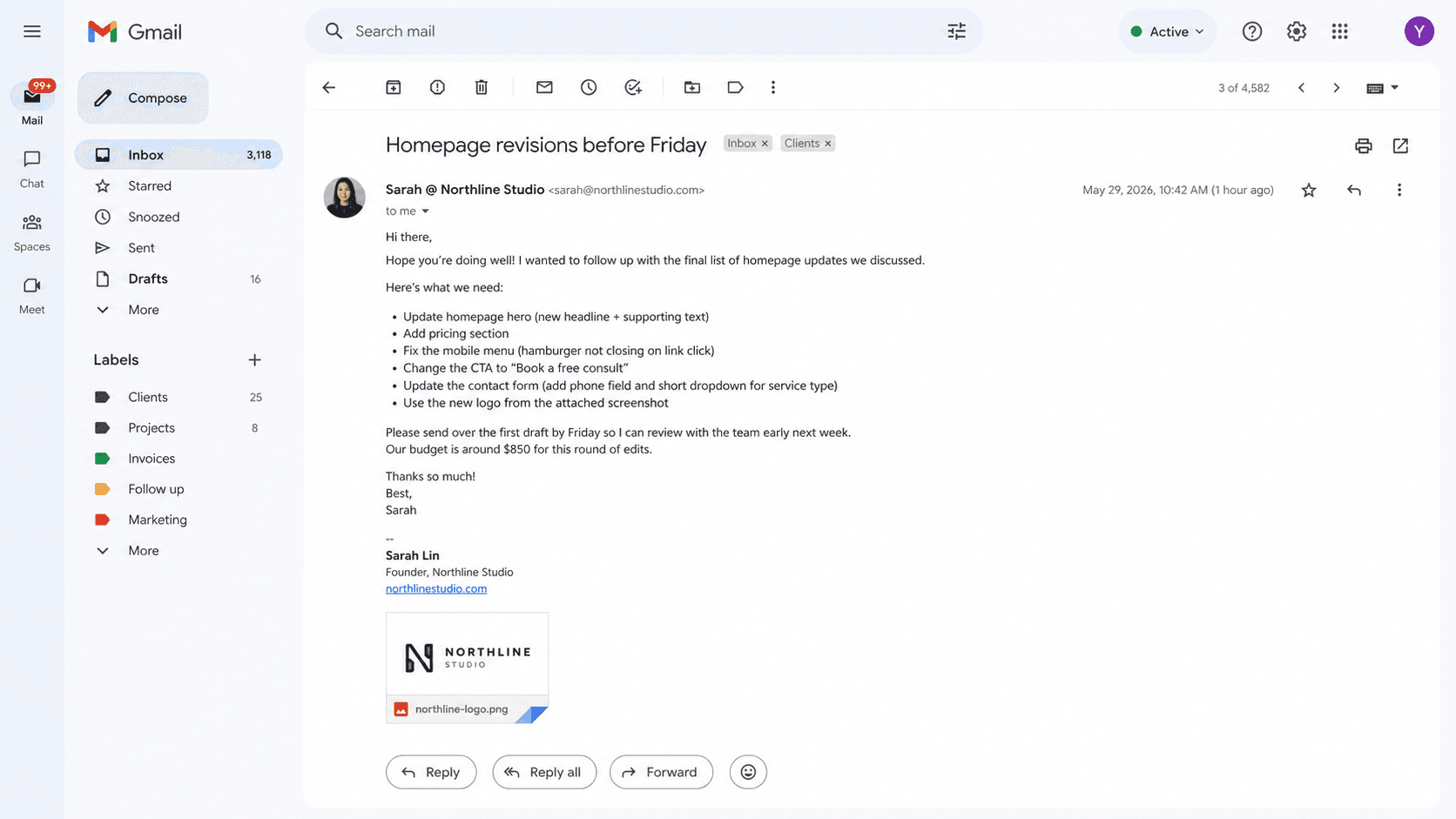
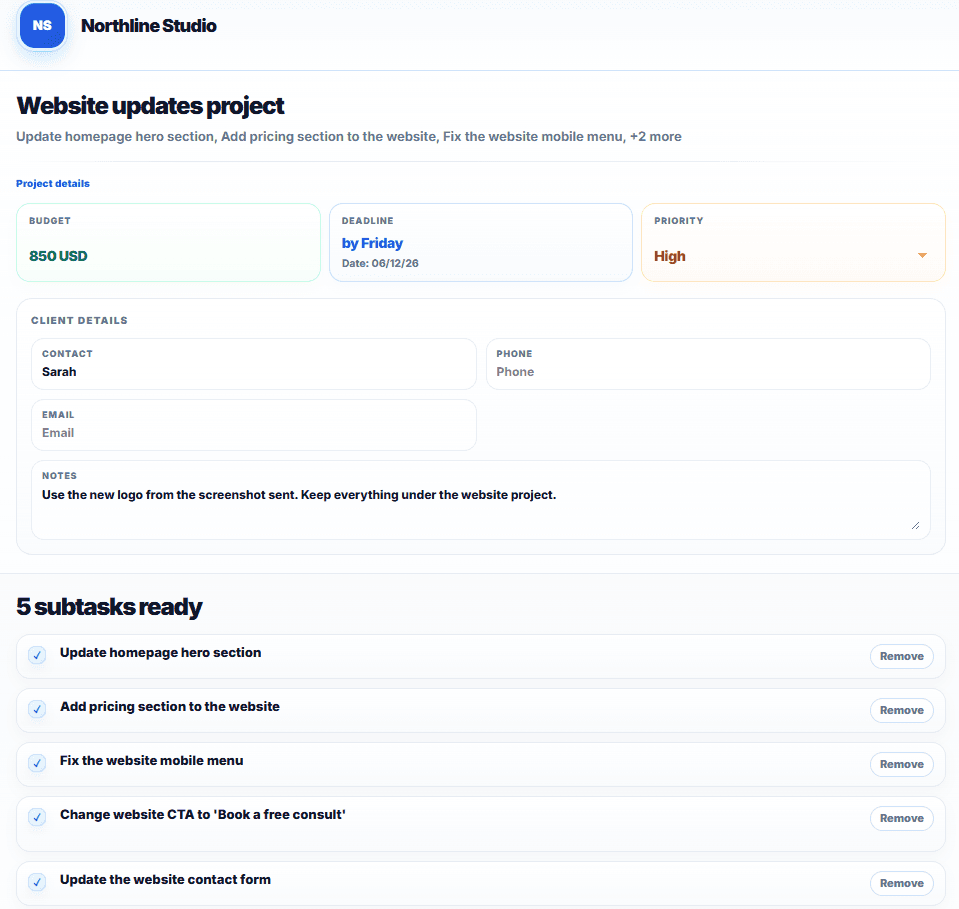
Text2Task does not access or monitor your inbox. You paste the email content you choose to process.
The intake problem
Emails often contain more than one task.
Client emails rarely contain one clean action. They mix project context, requests, dates, urgency, budget details, and client information—details that are easy to lose when you manually convert email into tasks or a larger project.
Project context
Keep the main request and supporting details together.
Action items
Organize several related requests under one project.
Dates and priorities
Review detected deadlines and urgency before saving.
Budget and client details
Keep relevant amount and contact information with the work when present.
How it works
Turn an email into a project in three steps.
Paste the email
Copy the selected email text you want to organize and paste it into Text2Task.
Review the structured draft
Text2Task prepares a project draft with related tasks and any useful details it can identify.
Edit and save
Correct the fields, remove anything you do not need, and save the approved project and tasks to your workspace.
What gets organized
What Text2Task can organize from an email
When the details are present, Text2Task can structure them into project fields for you to review.
- Project title and summary
- Tasks and subtasks
- Deadlines
- Priorities
- Budget or amount details
- Client and contact information
Stay in control
You stay in control from paste to save.
Text2Task does not connect to Gmail or Outlook. You choose what to paste, review the structured draft, edit the details, and save only when it looks right.
Before saving
- Edit the project title and summary
- Change deadlines, priorities, amounts, and client details
- Remove tasks that do not belong
Your inbox stays separate
- No Gmail connection
- No Outlook connection
- No inbox monitoring
Nothing is saved to your Text2Task workspace until you review and approve the draft.
Project context
More than a simple email-to-task list
Many client emails describe a complete piece of work, not one isolated action. The Email to Tasks feature keeps the project context together and organizes the related requests under it; the how-to guide explains the manual workflow when you want a step-by-step method first.
- Main client requestProject title and summary
- Several action itemsOrganized tasks under the project
- Dates and urgencyReviewable deadlines and priorities
- Budget and contact detailsStructured project fields when present
Who it helps
Built for people who manage client work
Useful when detailed client instructions arrive by email and need to become organized work.
Turn client instructions into a project you can review before starting the work.
Keep related requests, dates, and priorities together under the right project.
Turn client SEO changes from long emails into page-level work you can review.
Organize development change requests from email before bug fixes or feature work starts.
Keep Shopify store update requests, product notes, and launch dates together.
Organize detailed email instructions without manually rebuilding every task.
Create a clear project draft before assigning and tracking the work.
Keep going
Continue organizing client work
FAQ
Email to Tasks questions
Can Text2Task turn an email into tasks?
Yes. Copy the email text into Text2Task, and it creates a reviewable project draft with related tasks. Review and edit the details before saving.
Does Text2Task connect to Gmail or Outlook?
No. Text2Task does not connect directly to Gmail or Outlook and does not monitor your inbox. Paste only the email text you choose to process.
What information can Text2Task organize from an email?
When the information is present, Text2Task can organize the project title and summary, tasks, deadlines, priorities, budget or amount details, and client or contact information.
Can I edit the draft before saving?
Yes. You can edit supported fields, change deadlines or priorities, and remove tasks before saving the project.
What if the email includes several requests?
Text2Task can organize several related requests as tasks under the same project. Review the draft to confirm that each request is represented correctly.
Turn your next email into an organized project.
Paste the email text, review the draft, and save the project and tasks when everything looks right.